6 ways to speed up your PC

Posted on:
tags: , , , , ,

How to make a computer faster: 6 ways to speed up your PC


By following a few simple guidelines, you can maintain your computer, help increase its speed, and help keep it running smoothly. This article discusses how to use the tools available in Windows 8, Windows 7, Windows Vista, and Windows XP Service Pack 3 to help make your computer faster, maintain your computer efficiently, and help safeguard your privacy when you're online.
Note: Some of the tools mentioned in this article require you to be logged on as an administrator. If you aren't logged on as an administrator, you can only change settings that apply to your user account.

1. Remove spyware, and help protect your computer from viruses

Spyware collects personal information without asking for permission. From the websites you visit to user names and passwords, spyware can put you and your confidential information at risk. In addition to compromising your privacy, spyware can hamper your computer's performance. Fortunately, there are a couple of easy ways to combat spyware.
Download Microsoft Security Essentials for free to help guard your system from viruses, spyware, adware, and other malicious software (also known as malware). Microsoft Security Essentials acts as a spyware removal tool and includes automatic updates to help keep your system protected from emerging threats.
The Microsoft Windows Malicious Software Removal Tool, also free, checks computers running Windows 8, Windows 7, Windows Vista, Windows XP, Windows 2000, Windows Server 2012, Windows Server 2008, and Windows Server 2003 for infections by specific, prevalent malicious software, including Folstart, Phorpiex, Weelsof, Blaster, Sasser, and Mydoom. It helps remove any detected infection or malware.


2. Free up disk space

The Disk Cleanup tool helps you to free up space on your hard disk to improve the performance of your computer. The tool identifies files that you can safely delete and lets you choose to delete some, all, or none of the identified files.
Use Disk Cleanup to:
  • Remove temporary Internet files.
  • Delete downloaded program files, such as Microsoft ActiveX controls and Java applets.
  • Empty the Recycle Bin.
  • Remove Windows temporary files, such as error reports.
  • Delete optional Windows components that you don't use.
  • Delete installed programs that you no longer use.
  • Remove unused restore points and shadow copies from System Restore.
  • Delete system files (Windows 8).
Tip: Typically, temporary Internet files take the most amount of space because the browser caches each page you visit for faster access later.
To use Disk Cleanup:

Windows 8 users

Windows 7 users

Windows Vista users

Windows XP users


3. Speed up access to data

Disk fragmentation slows the overall performance of your system. When files are fragmented, the computer must search the hard disk as a file is opened (to piece it back together). The response time can be significantly longer.
Optimize Drives (Windows 8) and Disk Defragmenter (sometimes shortened to Defrag by users) are Windows utilities that consolidate fragmented files and folders on your computer's hard disk so that each occupies a single space on the disk. With your files stored neatly end to end, without fragmentation, reading and writing to the disk speeds up.
When to run Optimize Drives or Disk Defragmenter
In addition to running these utilities at regular intervals (weekly is optimal), there are other times you should run it, too, such as when:

  • You add a large number of files.
  • Your free disk space totals 15 percent or less.
  • You install new programs or a new version of the Windows operating system.
To use Optimize Drives:
  1. Open Optimize Drives by swiping in from the right edge of the screen, tapping Search (or if you're using a mouse, pointing to the upper-right corner of the screen, moving the mouse pointer down, and then clicking Search), entering Defragment in the search box, tapping or clicking Settings, and then tapping or clicking Defragment and optimize your drives.
  2. Under Status, tap or click the drive you want to optimize. (The Media type column tells you what type of drive you're optimizing.)
  3. To determine if the drive needs to be optimized, tap or click Analyze. You might be asked for an admin password or to confirm your choice.
    After Windows is finished analyzing the drive, check the Current status column to see whether you need to optimize the drive. If the drive is more than 10% fragmented, you should optimize the drive now.
  4. Tap or click Optimize. You might be asked for an admin password or to confirm your choice.
    Optimizing a drive might take anywhere from several minutes to a few hours to finish, depending on the size of the drive and degree of optimization needed. You can still use your PC during the optimization process.
Notes
  • If the drive is being used by another program, or is formatted using a file system other than NTFS, FAT, or FAT32, it can't be optimized.
  • Network drives can't be optimized.
  • If a drive isn't appearing in Optimize Drives, it might be because it contains an error. Try to repair the drive first, then return to Optimize Drives to try again.
Additional information and instruction to optimize your hard drive for Windows 8 is available.
To use Disk Defragmenter:

Windows 7 users

Windows Vista users

Windows XP users

Running Optimize Drives, Disk Cleanup, and Disk Defragmenter on a regular basis is a proven way to help keep your computer running quickly and efficiently. If you'd like to learn how to schedule these tools and others to run automatically, please read Speed up your PC: Automate your computer maintenance schedule. Windows 8 users should read Improve performance by optimizing your hard drive.


4. Detect and repair disk errors

In addition to running Optimize Drives, Disk Cleanup, and Disk Defragmenter to optimize the performance of your computer, you can check the integrity of the files stored on your hard disk by running the Error Checking utility.
As you use your hard drive, it can develop bad sectors. Bad sectors slow down hard disk performance and sometimes make data writing (such as file saving) difficult or even impossible. The Error Checking utility scans the hard drive for bad sectors and scans for file system errors to see whether certain files or folders are misplaced.
If you use your computer daily, you should run this utility once a week to help prevent data loss.

Run the Error Checking utility:


5. Learn about ReadyBoost

If you're using Windows 8, Windows 7, or Windows Vista, you can use ReadyBoost to speed up your system. A new concept in adding memory to a system, it allows you to use non-volatile flash memory—like a USB flash drive or a memory card—to improve performance without having to add additional memory. With Windows 8, if you have a storage device that will work with ReadyBoost, you’ll see an option to use ReadyBoost when you plug the device in to your PC.

6. Upgrade to Windows 8

If you try all the previous remedies and your computer still isn't as fast as you would like it to be, you may want to consider updating to Windows 8.
If the Windows 8 Upgrade Assistant determines that your computer can't run Windows 8 and you still have the need for speed, it might be time for a new computer. There are some great deals on new computers right now:

Top of page

Download TCS New Pattern Paper

Posted on:
tags: , , , , ,
Here is link which will provide TCS New Pattern Paper : Download


Download


Nirbhaya App to Help Women in Distress

Posted on:
tags: , ,

A city-based software company has launched a cellphone application, which can send a distress message to a specified contact group in an emergency situation confronting a woman. 

The application 'Nirbhaya', which can be downloaded for free, will send an alarm by way of an SMS text message denoting woman's location to the configured group through the Global Positioning System ( GPS), said Gajanan Sakhare, the CEO of 'Smart Cloud Infotech', which has developed the application. 

It can also be used for communicating exigencies like accident apart from attempted molestation through pre-defined text messages. 

Compatible at present with Android mobile phones, the user will be required to submit personal details in respect of residential address and emergency contact numbers. 

The users can configure their own list of contacts incorporating police and other close relatives and friends. 

A click on 'Nirbhaya' short-cut hot key in a distress situation can deliver a text message to the configured contact group, seeking help and indicating the user's location, he said, adding the application will soon be available on iPhone and Windows Phones.

How do I download or save a YouTube video to my computer?

Posted on:
tags: , ,
YouTube has been designed to only allow users to watch and view videos on their website. Many users want to save their favorite videos to their computer so they can watch them without being connected to the Internet or so they can watch them on other devices. Below are the steps required for downloading and watching YouTube videos on your computer for free.
 
Caution: These services can be used to save any flash videos online and can be used to save adult related videos, which unfortunately means when viewing these pages you may be subjected to adult related content.


Getting the YouTube file to your computer

Today, there are several online websites that allow you to enter the URL of the video you wish to save to your computer, and get a link to download the file. Below is a short list of some of the more popular free websites.


Below is a brief description of how to save a video using Savevid. These steps are often very similar with other services used to save YouTube and other flash videos online.

  1. Go to the YouTube video page and copy the URL of the video you wish to save. For example, below is a URL to a video on YouTube.

    http://www.youtube.com/watch?v=R3ymHMgFAps
     
  2. Once this address has been copied, visit SaveVid and paste that URL into the URL text field, then click the Submit or Download button.
  3. If done properly, the page should open a new window or display a link to each of the video formats that can be saved. Savevid will give you the option to save the video as FLV, 3GP, MP4 and WebM format. If you're wanting to watch this video on the computer we recommend saving the video as MP4 format.

Watching a FLV video on your computer

Once the .flv file has been downloaded to your computer, you'll need a player that supports .flv files. Below are a few suggestions.


VLC media player
http://www.videolan.org/


Windows Media Player
Microsoft Windows users also have the ability of playing FLV files in Windows Media player with the right codec. Downloading and installing the CCCP codec will install this codec, as well as many other codecs you'll likely need in the future.


Converting the YouTube video to a different movie format

There are dozens of different software programs and online services available that will allow you to convert FLV files into another format. Below is a short listing of some of the free services and products we recommend.


Media Convert - An excellent online service that can convert FLV files into dozens of other formats.
http://www.media-convert.com/


Vixy - Another great online service that allows you to download and save YouTube video files to another format.
http://vixy.net/

Additional information

  • See the YouTube definition for further information and related links.

How to check your internet speed

Posted on:
tags: , , ,


Many of us are unaware of the speed provided by our ISP. The plan states something but speed experienced by end  users are different. most of us don't know the exact speed we are experiencing in our broadband or any net connection. 


This is my internet speed !

Here are some simple steps to check your internet speed.
  • Go to speedtest.net or click here
  • simply click on begin test.
  • and see the actual results with in few seconds.

Make your own Facebook Movie

Posted on:
tags: , , ,
Hey friends! What's up 
Today I am sharing a cool stuff with you guys. How many of you want to make your own movie? 
So this new stuff can able to make your wish come true. Visit Timeline movie maker to make your own movie with facebook's events and publish it on your timeline. 

1. Visit here 


2. Click on make your movie (make sure you are online at facebook). 

3. Follow the further procedure and you will see your own facebook's video. 

while playing video

it will come while playing the video


See mine video   


Hope you like this post 
Thank you ! Keep  visiting :-)


Best Apps for Women Concerned with Safety and Security

Posted on:
tags: , , , , , , , , ,
The best way to minimize your chances of becoming a victim of violent crime (robbery, sexual assault, rape, domestic violence) is to identify and call on resources to help you out of dangerous situations. Whether you're in immediate trouble or get separated from friends during a night out and don't know how to get home, having these apps on your phone can reduce your risk and bring assistance when you need it. 

Since mobile phones have become ubiquitous, they can be used for security. Hence we bring you five such applications, which could be handy tools for your safety.

These apps will help you alert your near and dear ones, and tell them about your exact location in case of emergencies. 


Although several were originally developed for students to reduce the risk of sexual assault on campus, they are suitable for all women :

1. Circle of 6

Free Available on iPhone
 
This app is a must-have for any woman with an iPhone. Designed for college students, Circle of 6 is also useful for high school students or any female of any age who wants an easy-to-use system to alert friends when she's in a threatening situation. As fully functional as those apps which require you to subscribe to a monthly/yearly service plan, Circle of 6 has an unobtrusive screen that's simple to operate. Two taps will send out one of three predetermined text messages to 6 contacts of your choice including a call for help getting home that automatically includes an address and map of your exact location, or a request for a phone call from you to break up a tense situation. The app also contains pre-programmed national hotline numbers and a local number you can customize for campus security, police or 911. Circle of 6 is the winner of the Department of Health and Human Services / White House "Apps Against Abuse" Challenge and its four developers have significant expertise in the fields of sexual violence prevention, mobile technology, graphic design and healthy relationship building. Three in fact are women.


2. Fight back


This app is paid. 
Availability: All smartphones and Java-based feature phones

Fightback is an India specific application available for all types of mobile phones. Fightback uses GPS, SMS, location maps, GPRS, email and your Facebook account to inform your loved ones in case you are in danger. You can add up to five emergency contacts to the list. When the 'Panic' button is pressed from the mobile application, the portal alerts page gets updated with the live alert data and shows the location of the alert on the Google Map.

This will be visible to all the users of the web portal. The portal also sends out SMS messages to the mobile numbers pre-set by the user. When this hyperlink is clicked, it will show the location of the app user on Google Maps. The web portal also updates the user's Facebook status with the SOS message. This SOS message will be visible to all the friends who are connected to the user via Facebook.

When the Facebook message is clicked, it will take the Facebook friend to the web portal Alert Page, and will show the location of the mobile user when the SOS was raised, along with a time stamp. The mobile application user can avoid Facebook updates by changing the setting from the My Profile Page. 


3. Hollaback
 
Free
Available on iPhone and Android
""Hollaback! You have the power to end street harassment" is the tag line for this app which tackles the crime one perpetrator at a time. Users can choose to take and upload a photo of their harasser "caught in the act" and submit their story to be recorded and mapped on ihollaback.org. This not only signals the perpetrator that his image will be shared and posted on a street harassment prevention website, but also warns others of areas in which harassment occurs. Hollaback's premise is that "street harassment is a gateway crime that makes other forms of gender-based violence OK." They encourage users to submit stories and photos of street harassment at every level from catcalls from total strangers to groping hands on a crowded bus and individuals exposing themselves on a subway. An estimated 80-90% of women have been harassed in public, and as Hollaback's executive director Emily May explains, she has a ten-year goal -- to end street harassment so that she's out of a job. In addition to the apps and website, Hollaback is part of an international movement with locally-based Hollaback organizations in major cities and metropolitan areas in over 18 countries.


4. bSafe

Free and Subscription Versions
Available on iPhone, Android, BlackBerry
A personal safety alarm that sends an emergency message to your chosen contacts with the push of a single button, bSafe's slogan is "Never walk alone." The free version allows you to set up a safety net of "Guardians" who can respond to your SOS text message; one Guardian you designate will receive a phone call.(Both versions give you an unlimited number of Guardians available by text message; the subscription version gives you up to 3 Guardians who can be called simultaneously.) All Guardians receive a text message with a link to a map showing your location via GPS. You can also program a Fake Incoming Call if you are threatened, with six options for when the call should be initiated (immediately, 5 seconds, 15 seconds, 1 minute, 5 minutes, 10 minutes.) The subscription version of bSafe gives you two additional levels of safety: a Risk Mode with real time GPS tracking of your position, and a Timer Mode with automatic alarm activation (e.g. if you don't log in after the programmed time period, your Guardians will receive an alert with your entire route mapped out.) The cost for the bSafe Premium subscription is $1.99/month or $14.99/year. The original idea was developed by Silje Vallestad, a mom who wanted to use mobile technology to keep her kids safe. With no knowledge of the industry, she won a business plan competition and used the money to create a safety alarm for kids, BipperKids. When other women told her they were "borrowing" their kids phones for their evening runs, she created bSafe. 


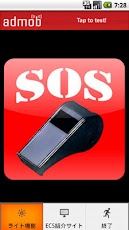
5. SOS Whistle


Availability: All phones

SOS Whistle does not send an SOS or let your friends known where you are. Rather, as its name suggests, the app has a very simple function-to trigger a whistle. In fact, it can trigger a whistle sound even if the phone is in silent mode. Thus, it is a great app in times of danger to tell other passers-by of your situation. You don't even need a data connection or GPS service. You just have to tap the screen and the app will start an alarm. 

< ◘ >